Your store's tablets,as kiosks, boards and counters
Set up devices in the Nomi back office, pick one on the tablet, and it becomes that device's full-screen view while it prints tickets and cup labels in the background.
You'll be able to download it here once it's live. You can set up your devices in the back office now.
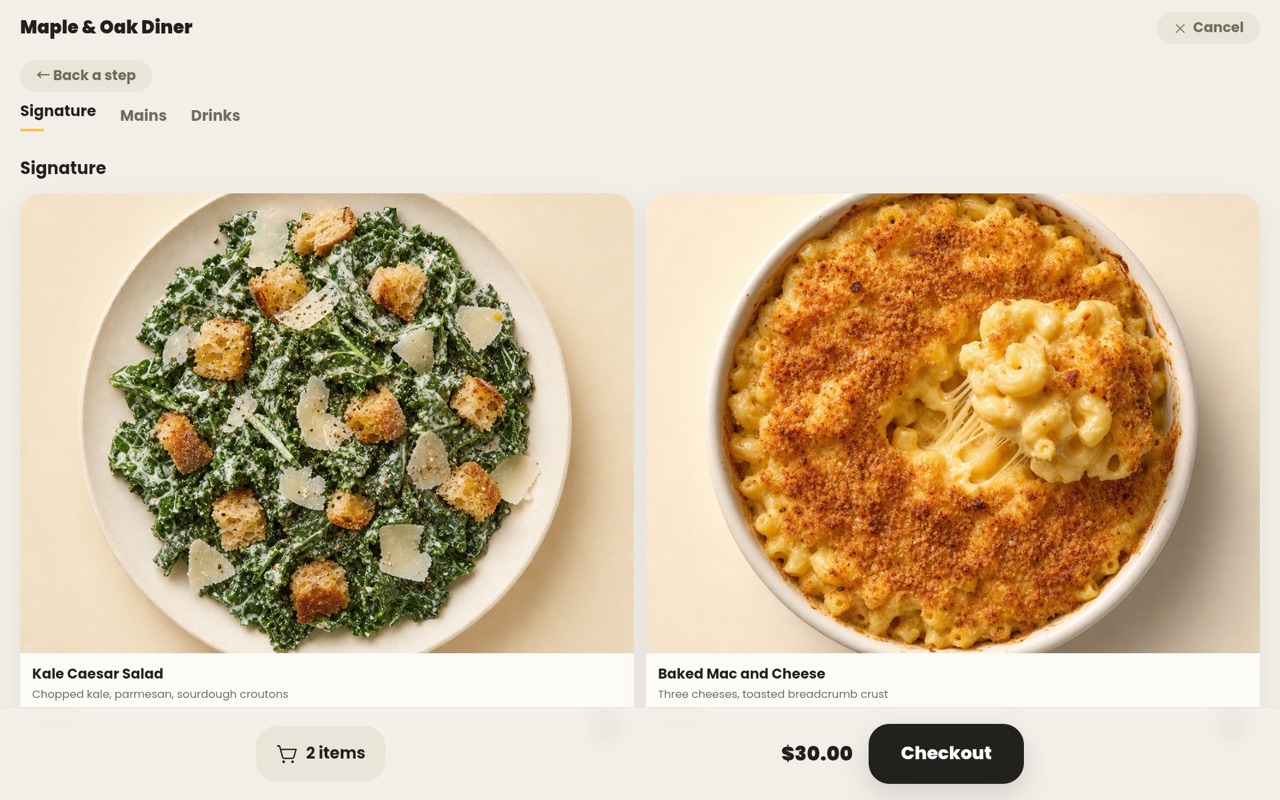
One tablet, any spot in the store
Kiosk
Guests order and check out on their own, on your menu and your photos.
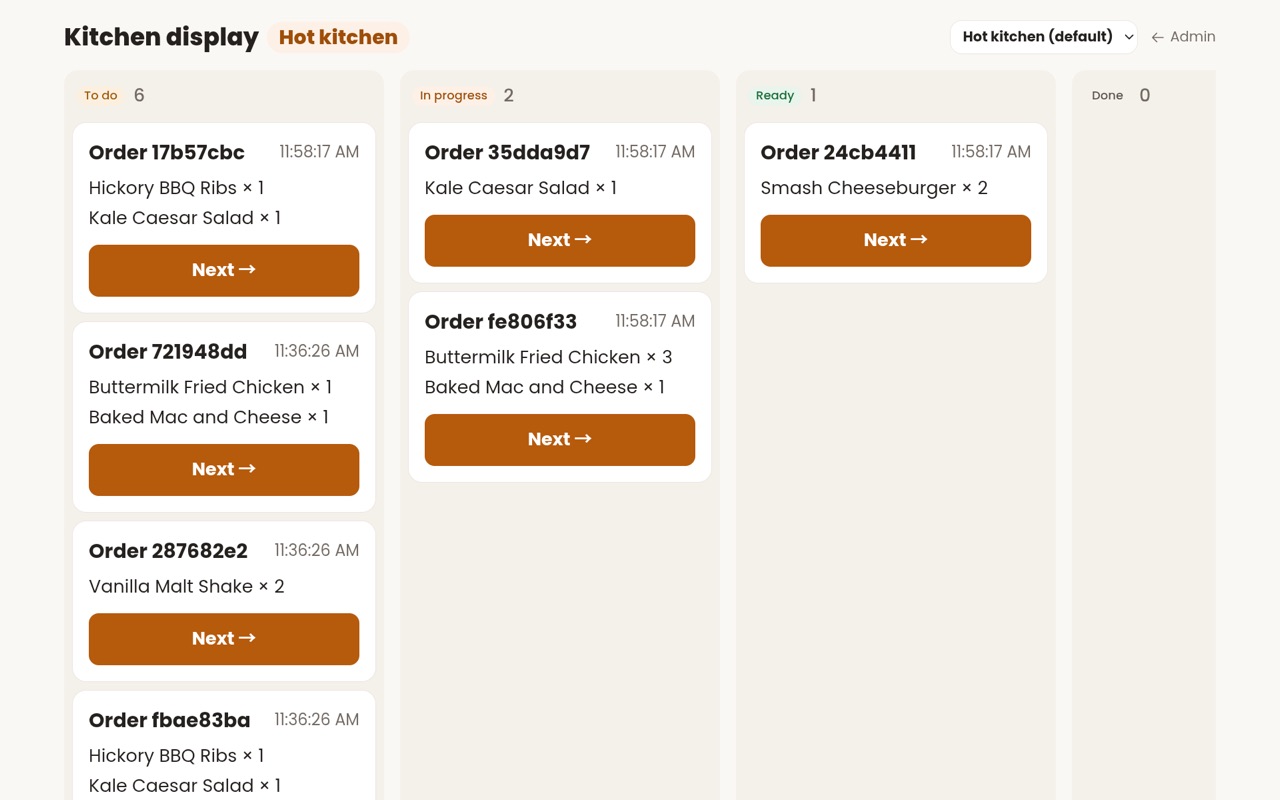
Kitchen board
New orders arrive live; one tap moves them to Cooking or Ready.
Counter
Staff ordering, dine-in or takeaway, orders and the floor map on one screen.
Signage
Rotate dish photos or notices.
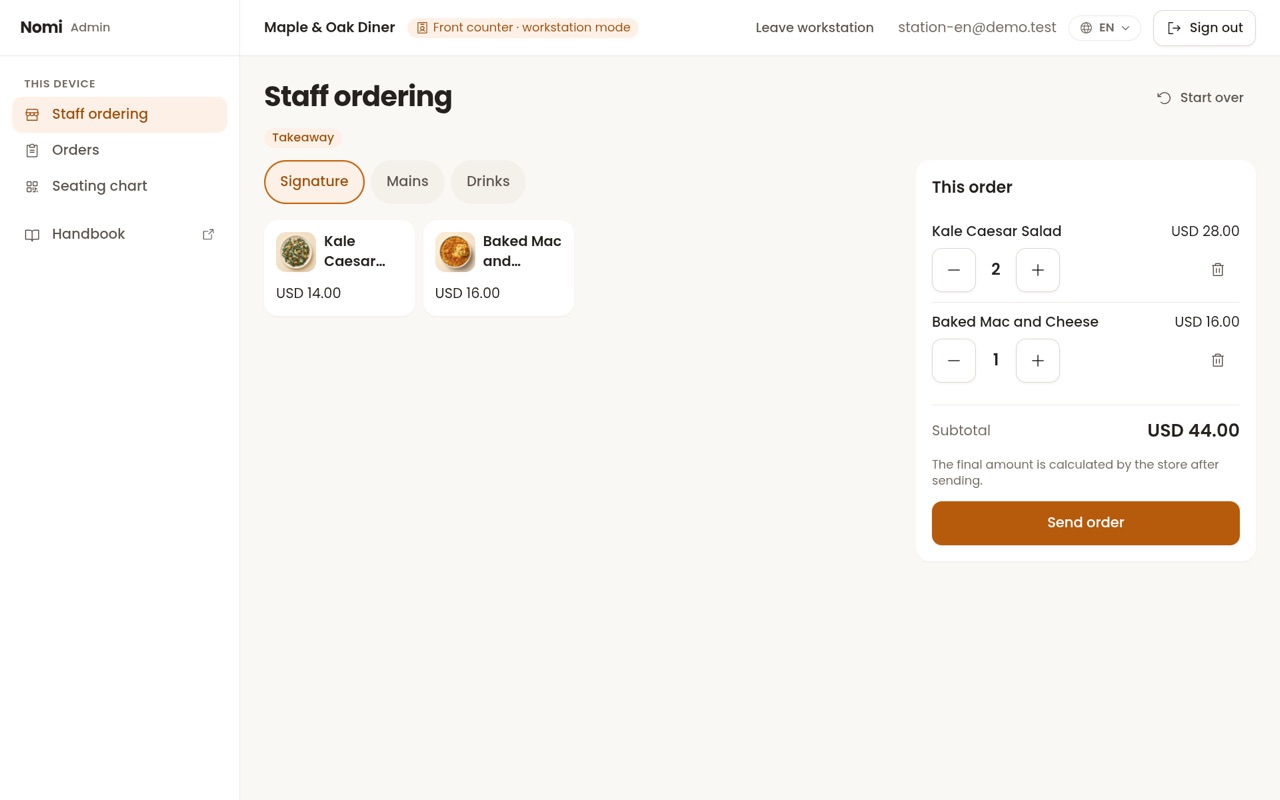
Staff devices open already signed in, so nobody re-types a password every morning. Guest-facing devices need a staff password to open the menu.
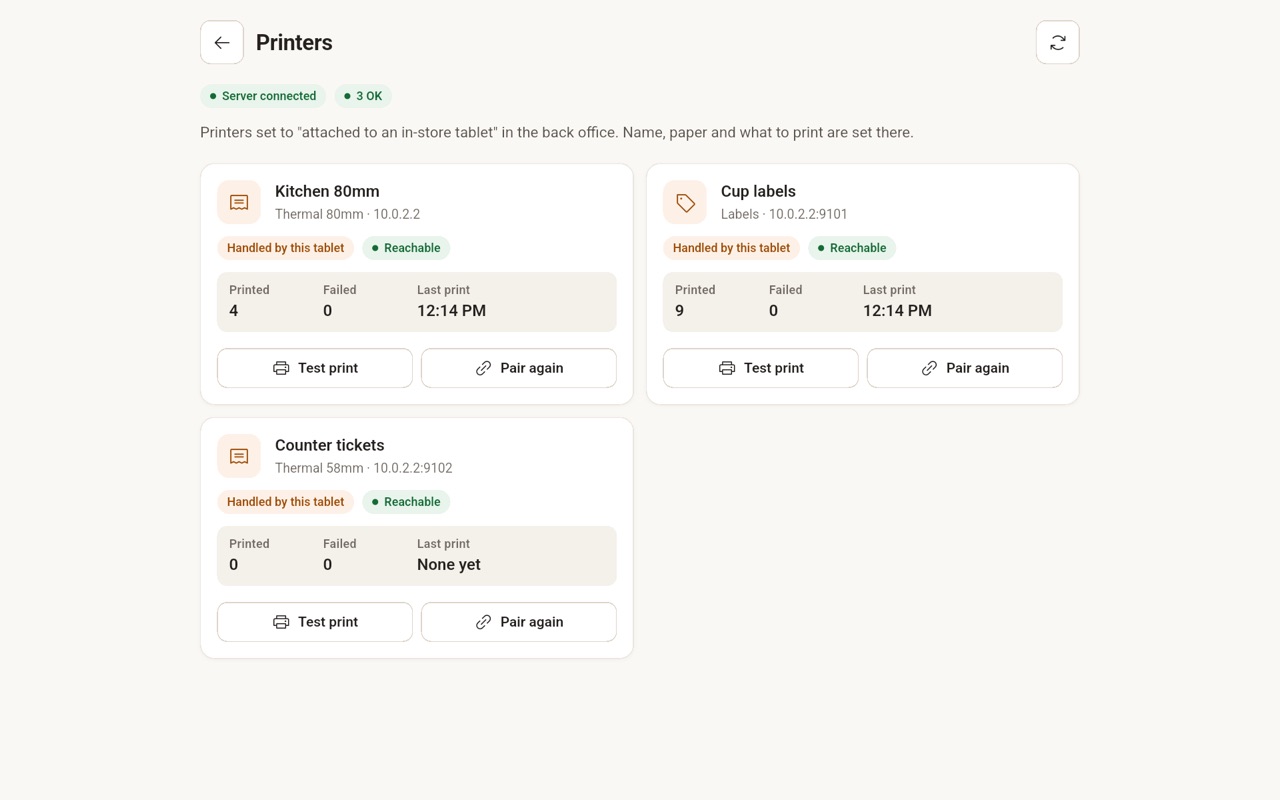
Printing, handled by the tablet
- Kitchen tickets, cup labels and queue numbers go to the right printer automatically
- Network (LAN) and USB printers: 58/80 mm thermal (ESC/POS) and label printers (TSPL)
- If a printer drops off for a moment, jobs wait in line and print when it is back
- See printed and failed counts and the last print time per printer; send a test print in one tap
Get started in four steps
- 1
Create devices in the back office
In Devices in the Nomi back office, add a kiosk, a counter or a device for the kitchen.
- 2
Install Nomi Station and sign in
Sign in with your Nomi account and the app lists your store's devices.
- 3
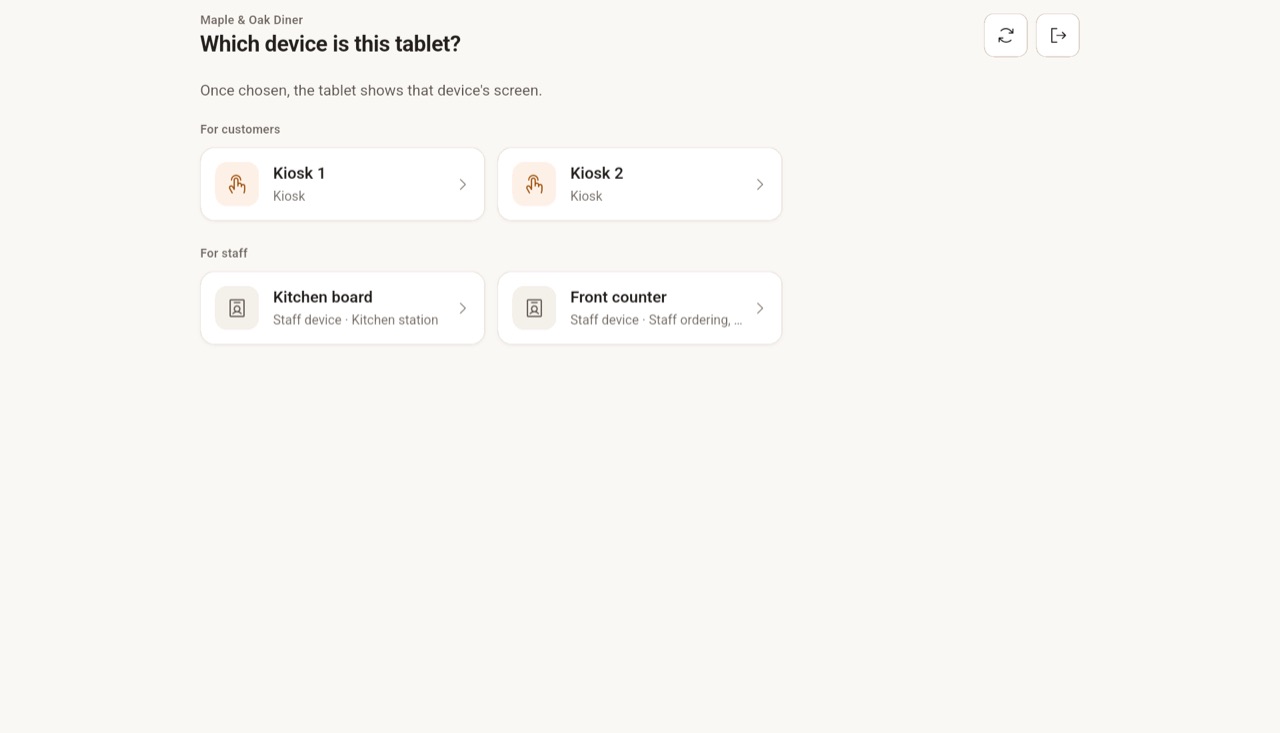
Pick which device this tablet is
The tablet then shows that device full screen, and opens straight into it next time.
- 4
Pair your printers
In the back office, set the printer to Attached to an in-store tablet, then pick it in the app and send a test print.
Before you start
- A Nomi account (you can open a store for free)
- An Android tablet on your store's network
- Devices and printers are set up in the Nomi back office; the app shows the screen and does the printing
- Languages: 繁體中文、简体中文、English、日本語、한국어、ภาษาไทย、Tiếng Việt
No Android tablet?
Kiosks, kitchen boards and the counter are web pages, so they also open in a browser on an iPad or computer. For printing, use a Star CloudPRNT cloud printer: plug it into the network and it prints, no app needed.
New to Nomi?
Open a store for free and set up your menu and devices. Guests order by scanning the QR on the table, no app to download.